Android Plataforma - Part 13: Including "pure JVM" modules
By Rodrigo Sicarelli 3 min read Updated
In the last article we sped up Android module builds by turning off several Android Gradle Plugin (AGP) features.
In this article we’ll look at the difference between pure JVM modules (java-library) and Android Library modules (com.android.library), and we’ll extend our platform to support that feature.
What are pure JVM modules?
Pure JVM modules are modules that run exclusively on the JVM (Java Virtual Machine). In other words, they have no direct tie to or dependency on Android.
Put simply, they’re purely Java modules, free of the specifics and complexity of Android modules.
As a result, builds are more efficient, since these modules don’t go through the Android Gradle Plugin (AGP) compilation steps.
When should you use pure JVM modules?
-
Business logic: For business-logic code that doesn’t depend directly on Android, such as calculations, validations, or list handling.
-
Generic libraries: When you’re building a library that can be used in both Android projects and pure Kotlin/JVM projects.
-
‘core’ modules: Modules for things like databases, networking, or logging that can be built purely in Kotlin/JVM.
Decorating our platform to handle pure JVM modules
The idea is to add a new entry point called jvmLibrary() and decorate it with the applyJvmLibrary() function.
1 - Create a fun Project.applyJvmLibrary() function in the kotlin.kt file:
import org.gradle.api.JavaVersion
import org.gradle.api.Project
import org.gradle.api.plugins.JavaPluginExtension
import org.gradle.kotlin.dsl.configure
import org.gradle.kotlin.dsl.withType
import org.jetbrains.kotlin.gradle.tasks.KotlinCompile

internal fun Project.applyJvmLibrary() {
    pluginManager.apply("java-library")
    extensions.configure<JavaPluginExtension> {
        sourceCompatibility = JavaVersion.VERSION_17
        targetCompatibility = JavaVersion.VERSION_17
    }

    applyKotlinOptions()
}

internal fun Project.applyKotlinOptions() {
    tasks.withType<KotlinCompile>().configureEach {
        kotlinOptions {
            jvmTarget = "17"
        }
    }
}
2 - Let’s stay consistent with our platform’s pattern and let modules configure their build individually. This opens up some new customizations we’ll apply in the next post:
To avoid scattering the Options around, let’s create a build-logic/src/../options folder and move AndroidOptions.kt into it.
Create a CompilationsOptions class and add this content:
import org.gradle.api.JavaVersion

internal data class CompilationOptions(
    val javaVersion: JavaVersion,
    val jvmTarget: String,
    val allWarningsAsErrors: Boolean,
)

class CompilationOptionsBuilder {

    var javaVersion: JavaVersion = JavaVersion.VERSION_17
    var jvmTarget: String = "17"
    var allWarningsAsErrors: Boolean = false

    internal fun build(): CompilationOptions = CompilationOptions(
        javaVersion = javaVersion,
        jvmTarget = jvmTarget,
        allWarningsAsErrors = allWarningsAsErrors
    )
}
3 - Let’s adapt our applyJvmLibrary() function to take a CompilationOptions:
import com.rsicarelli.kplatform.options.CompilationOptions
import org.gradle.api.JavaVersion
import org.gradle.api.Project
import org.gradle.api.plugins.JavaPluginExtension
import org.gradle.kotlin.dsl.configure
import org.gradle.kotlin.dsl.withType
import org.jetbrains.kotlin.gradle.tasks.KotlinCompile

internal fun Project.applyJvmLibrary(compilationOptions: CompilationOptions) {
    pluginManager.apply("java-library")
    applyJavaCompatibility(compilationOptions.javaVersion)
    applyKotlinOptions(compilationOptions)
}

internal fun Project.applyKotlinOptions(compilationOptions: CompilationOptions) {
    tasks.withType<KotlinCompile>().configureEach {
        kotlinOptions {
            allWarningsAsErrors = compilationOptions.allWarningsAsErrors
            jvmTarget = compilationOptions.jvmTarget
        }
    }
}

private fun Project.applyJavaCompatibility(javaVersion: JavaVersion) {
    extensions.configure<JavaPluginExtension> {
        sourceCompatibility = javaVersion
        targetCompatibility = javaVersion
    }
}
4 - Notice that we changed the signature of the applyKotlinOptions function, which is shared across our android.kt decorations.
internal fun Project.applyAndroidApp(
    androidAppOptions: AndroidAppOptions,
    compilationOptions: CompilationOptions,
) {
    applyAndroidCommon(
        androidOptions = androidAppOptions,
        compilationOptions = compilationOptions
    )
    ..
}

internal fun Project.applyAndroidLibrary(
    androidLibraryOptions: AndroidLibraryOptions,
    compilationOptions: CompilationOptions,
) {
    applyAndroidCommon(
        androidOptions = androidLibraryOptions,
        compilationOptions = compilationOptions
    )
        ..
}

private fun Project.applyAndroidCommon(
    androidOptions: AndroidOptions,
    compilationOptions: CompilationOptions,
) =
    with(commonExtension) {
        ..

        compileOptions {
            sourceCompatibility = androidOptions.javaVersion
            targetCompatibility = androidOptions.javaVersion
        }

        applyKotlinOptions(compilationOptions)
        ..
    }
Exposing the new APIs
Now let’s update our KPlatformPlugin.kt with the new definitions:
fun Project.androidApp(
    compilationOptionsBuilder: CompilationOptionsBuilder.() -> Unit = { },
    appOptionsBuilder: AndroidAppOptionsBuilder.() -> Unit = { },
) = applyAndroidApp(
    androidAppOptions = AndroidAppOptionsBuilder().apply(appOptionsBuilder).build(),
    compilationOptions = CompilationOptionsBuilder().apply(compilationOptionsBuilder).build()
)

fun Project.androidLibrary(
    compilationOptionsBuilder: CompilationOptionsBuilder.() -> Unit = { },
    libraryOptionsBuilder: AndroidLibraryOptionsBuilder.() -> Unit = { },
) = applyAndroidLibrary(
    androidLibraryOptions = AndroidLibraryOptionsBuilder().apply(libraryOptionsBuilder).build(),
    compilationOptions = CompilationOptionsBuilder().apply(compilationOptionsBuilder).build()
)

fun Project.jvmLibrary(builderAction: CompilationOptionsBuilder.() -> Unit = { }) =
    applyJvmLibrary(
        compilationOptions = CompilationOptionsBuilder().apply(builderAction).build()
    )
Creating a JVM module and applying the platform decorations
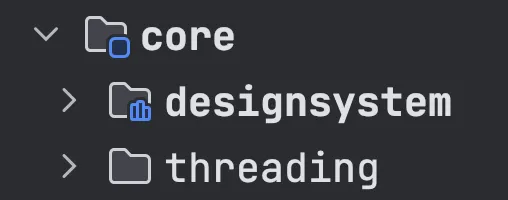
1 - Inside core, we’ll create a new module called threading.
2 - Add this new module to settings.gradle.kts:
include(":app", ":features:details", ":features:home", ":core:designsystem", ":core:threading")3 - Sync the project. Then create a build.gradle.kts file and configure the module’s options:
import com.rsicarelli.kplatform.jvmLibrary

plugins {
    kotlin("jvm")
}

jvmLibrary()

dependencies {
    api(libs.kotlinx.coroutines.core)
    testApi(libs.kotlinx.coroutines.test)
}
Success!
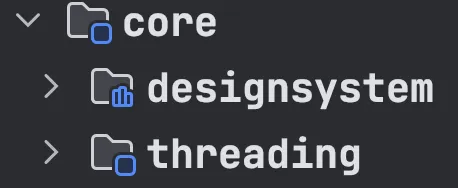
The IDE will tell you whether this library is pure JVM.
I’m using IntelliJ here, but Android Studio will also show a different icon
In the next article we’ll learn how to customize our builds to enable some of the Kotlin compiler’s experimental features.

